
SUMIFS Not Adding Up in Your Budget Spreadsheet?
If SUMIFS returns 0 — or a total that's obviously too low — the formula is almost certainly fine. The data isn't matching. In a budget spreadsheet the cause is nearly always one of three things: an invisible trailing space in the category text, amounts stored as text instead of numbers, or criteria ranges of different lengths.
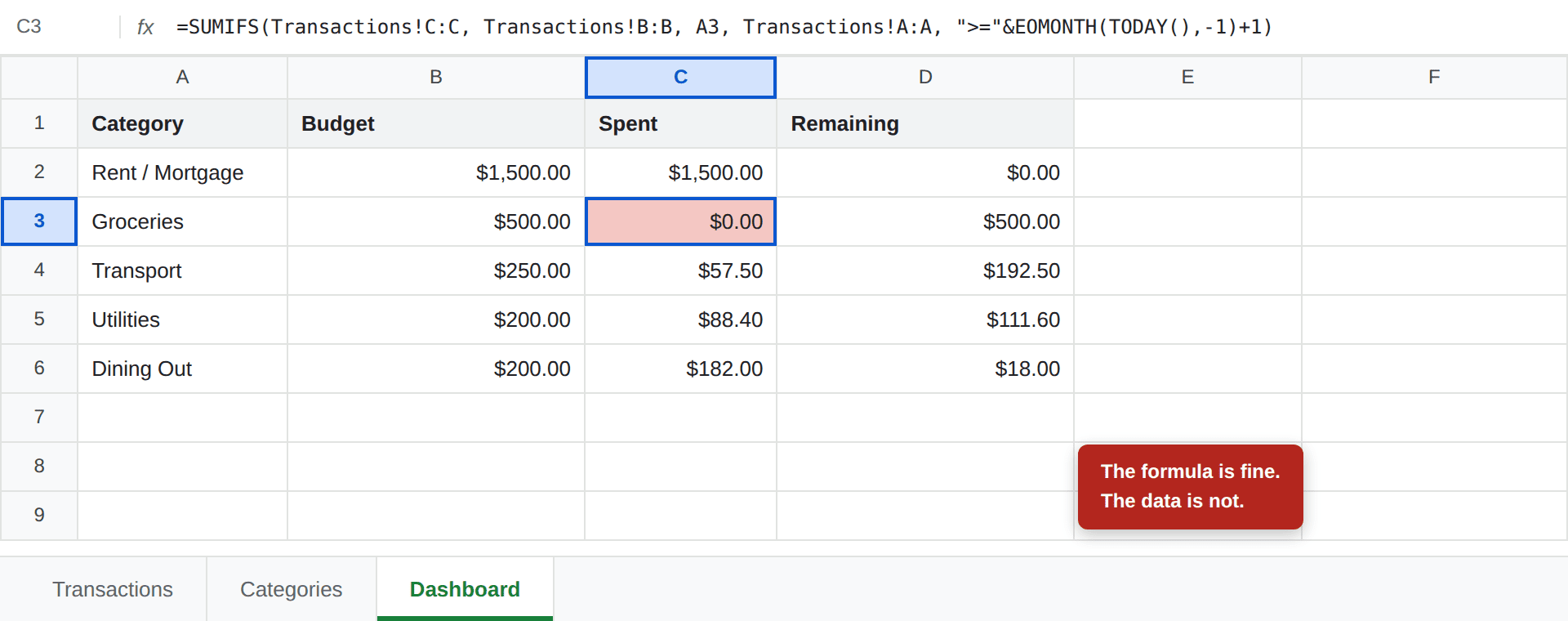
Here is the symptom everyone recognises. Groceries clearly has transactions logged, and the dashboard insists you've spent nothing:
The 60-second diagnosis
Don't start rewriting the formula. Start by finding out which half is broken — the matching or the adding. Put these in any empty cell:
=COUNTIF(Transactions!B:B, A3)— how many rows match the category. If this returns 0, your problem is text matching. Skip to cause 1.=SUM(Transactions!C:C)— the total of every amount. If this is lower than you expect, some amounts aren't numbers. Skip to cause 2.=ISNUMBER(C5)on a specific amount cell.FALSEconfirms it.
That narrows it in under a minute, and it stops you from "fixing" a formula that was never wrong.
Cause 1: a trailing space
This is the most common cause by a wide margin, and the hardest to see, because "Groceries " and "Groceries" look identical on screen. SUMIFS treats them as different categories.
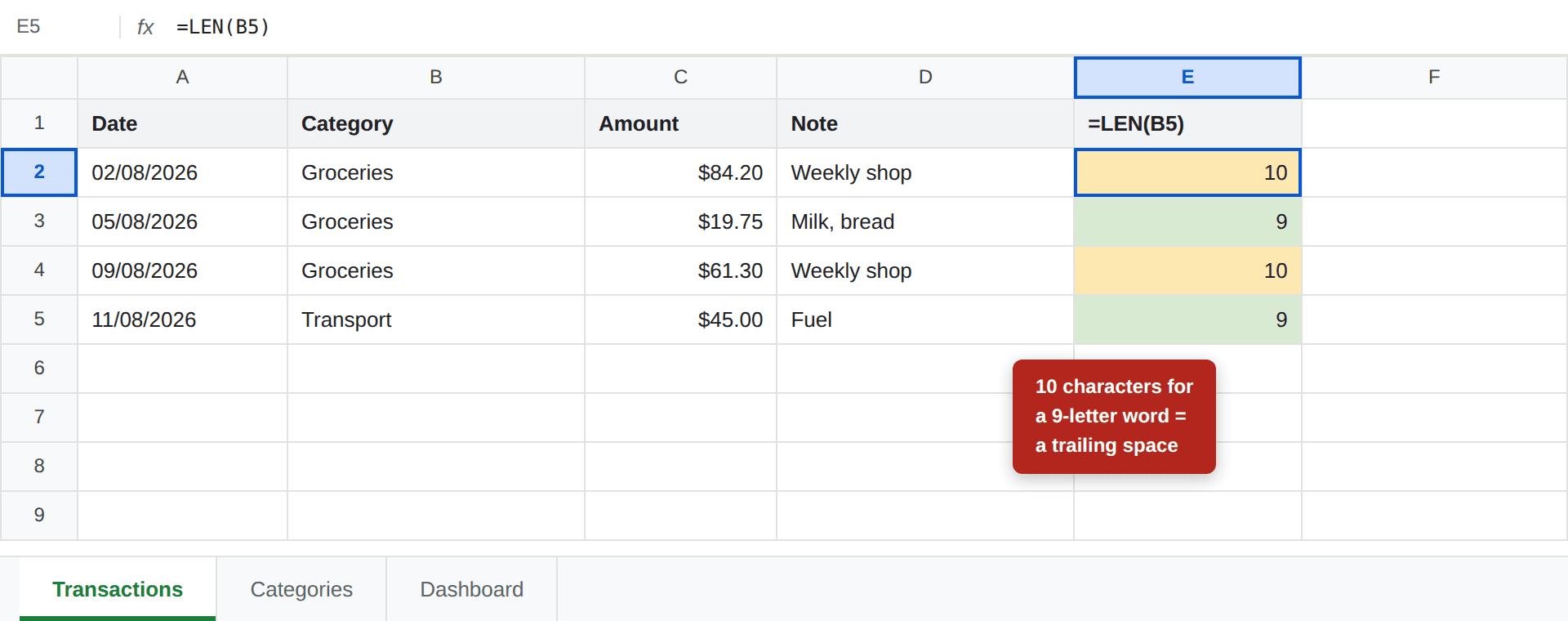
Make it visible. Put =LEN(B5) in an empty column and drag it down:
Two fixes, depending on how much you care about the underlying data:
- Clean the values. In a spare column use
=TRIM(B5), drag it down, then paste the results back over column B as values only. - Wrap the criteria instead. Leave the data alone and make the formula forgiving. This is quicker but it hides a mess you'll meet again.
Non-breaking spaces — the kind that arrive when you paste from a bank statement or a web page — survive TRIM in some cases. If LEN still looks wrong after trimming, try =TRIM(SUBSTITUTE(B5, CHAR(160), " ")).
Trailing spaces are the reason the Google Sheets budget build puts a dropdown on the category column. It's not decoration — it's what stops this.
Cause 2: amounts stored as text
SUMIFS doesn't error on text amounts. It silently skips them, which is why the total is wrong but nothing looks broken. The tell is alignment: spreadsheets right-align numbers and left-align text by default, so a stray left-aligned amount is a text value.
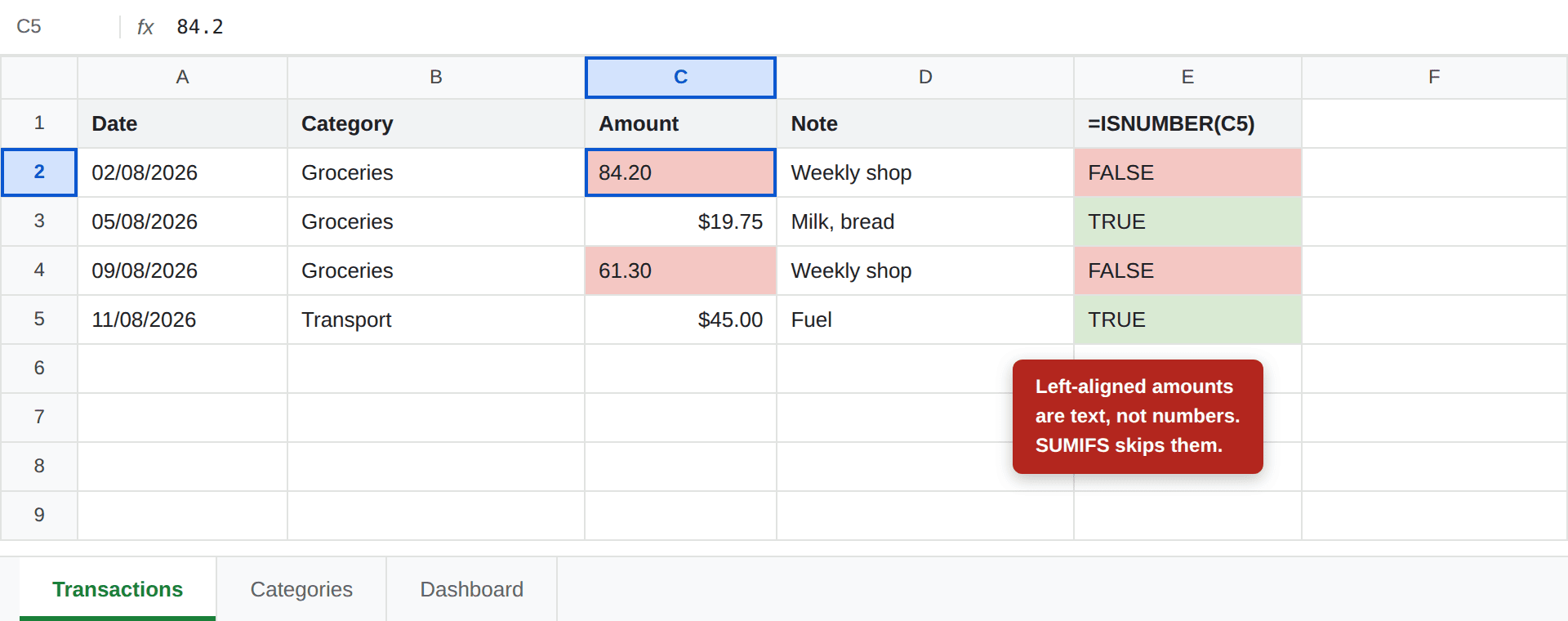
This happens most often after importing a CSV from your bank, where amounts arrive with currency symbols, thousands separators or trailing minus signs. Fix it by selecting the column and applying Format → Number → Currency. If they stay left-aligned, the cells contain characters that can't be parsed — run =VALUE(SUBSTITUTE(SUBSTITUTE(C5,"$",""),",","")) in a helper column and paste the results back.
Run your numbers
Budget template
Dropdowns and matching ranges already set up, so none of this happens.
Make a copy →Cause 3: mismatched range sizes
This one announces itself with #VALUE! rather than a wrong number. SUMIFS requires the sum range and every criteria range to cover the same number of rows. Mixing styles breaks it:
=SUMIFS(Transactions!C:C, Transactions!B5:B1000, A3)
A whole column has over a million rows; B5:B1000 has 996. Pick one style and stay with it:
=SUMIFS(Transactions!C:C, Transactions!B:B, A3)
Whole columns are the safer default in a budget, because the ranges can never drift apart as you add rows.
Cause 4: the date criteria
If your dashboard filters to the current month, the date condition is a second place things quietly fail. The comparison operator has to be a string, joined to the date with &:
Transactions!A:A, ">="&EOMONTH(TODAY(),-1)+1
Writing ">=EOMONTH(TODAY(),-1)+1" as one quoted string is the classic slip — the whole thing becomes literal text and matches nothing.
The other date trap is dates stored as text, again usually from a CSV import. =ISNUMBER(A5) tells you: real dates are numbers underneath, so FALSE means it's a string that no date comparison will ever match.
Stop it happening again
Every cause above traces back to hand-typed data. Three habits remove almost all of it:
- Put a dropdown on the category column. Data validation reading from your Categories tab means the text is picked, never typed. Better still, categorise transactions automatically so the text is never entered by a human at all. This alone prevents cause 1 permanently.
- Format the amount column as currency before you log anything. New entries then arrive as numbers, and pasted text stands out immediately by being left-aligned.
- Keep one transactions tab. A new tab per month multiplies the ranges you have to keep aligned — and it breaks every formula that looks backwards. See how to automate a budget spreadsheet for the full setup.
If you'd rather not build the guard rails yourself, our free budget template has them already — dropdowns on the category column, currency formatting on amounts, and matching whole-column ranges throughout.
Frequently asked questions
Why is my SUMIFS returning 0?
Because nothing in the criteria range matched. The formula itself is almost never wrong — the usual causes are a trailing space in the category text, a category spelled differently from the one on your dashboard, or amounts stored as text rather than numbers. Test it with COUNTIF: if =COUNTIF(Transactions!B:B, A3) also returns 0, it is a matching problem, not a maths problem.
Why is my SUMIFS total too low but not zero?
Some rows are matching and others are not. This normally means a few entries were typed by hand while the rest came from a dropdown, so a handful carry stray spaces or a different spelling. It can also mean some amounts are stored as text, which SUMIFS silently skips rather than flagging as an error.
How do I find a trailing space in a spreadsheet?
Put =LEN(B5) in an empty column next to your category column and drag it down. Compare the numbers against the real length of the word — Groceries is 9 characters, so a row showing 10 has an extra invisible character. Fix the whole column at once by wrapping the values in TRIM, or by re-selecting the entries from a dropdown.
Why does SUMIFS give a #VALUE! error?
The ranges are different sizes. SUMIFS requires the sum range and every criteria range to have exactly the same number of rows, so mixing a whole-column reference like C:C with a fixed range like B5:B1000 will fail. Either use whole columns everywhere or fixed ranges everywhere.
Do dropdowns prevent this problem?
Largely, yes. A data validation dropdown on the category column means every entry is picked from one list instead of typed, which removes stray spaces and spelling variants at the source. It is the single most effective fix, because it stops the problem happening rather than finding it afterwards.