
Excel vs Google Sheets for Budgeting
For a personal budget, Google Sheets is the better default: it's free, it saves itself, it syncs to your phone, and you can share it with a partner in real time. Excel earns its place when the file gets genuinely large, when you need Power Query to clean bank exports, or when you work offline a lot.
The good news for anyone agonising over this: the formulas a budget needs are identical in both. You are not choosing a skill set, you're choosing a container — and you can switch later.
Head to head
| For a budget | Google Sheets | Excel |
|---|---|---|
| Cost | Free | Microsoft 365 for the desktop app; free web version |
| Saving | Automatic, with full version history | Manual unless the file lives in OneDrive |
| Phone | Genuinely usable for logging a purchase | Workable, more cramped |
| Sharing with a partner | Real-time, both editing at once | Possible via OneDrive, clumsier |
| Offline | Needs setup, works but fiddly | Native — this is Excel's home turf |
| Big files | Slows past roughly 50,000 rows | Handles hundreds of thousands comfortably |
| Cleaning bank exports | Formulas and Apps Script | Power Query, which is genuinely better at this |
Read that table honestly and most households land on Sheets, because "free, automatic, on my phone, shared with my partner" describes a budget's daily life better than "handles 400,000 rows".
Where Google Sheets wins
- It costs nothing. No subscription to lapse, which matters for a file you intend to keep for a decade.
- It saves itself. A budget you forgot to save is a budget you stop trusting. Version history also means an accidental delete is a two-click undo, days later.
- Two people, one sheet. This is the feature couples actually need (here is how to set up a shared expenses sheet) — both of you logging into the same file, live, with no "which version is current" argument.
- The phone app is good enough to log from the checkout line. The single biggest reason budgets die is a gap between spending and recording.
- Sheets-only functions.
QUERYfor filtered views,IMPORTRANGEto pull from another file,GOOGLEFINANCEfor live prices if you also track investments.
Where Excel wins
- Power Query. If you download CSVs from your bank every month, Power Query cleans and appends them on a repeatable recipe. Sheets has no real equivalent, and this is the strongest reason to stay on Excel.
- Speed at scale. Years of transactions, or a budget bolted onto a business ledger, stay responsive in Excel long after Sheets starts lagging.
- Offline. No connection, no compromise.
- Pivot tables. Both have them; Excel's are faster and more capable once the data gets big.
- It's what you already know. Not a small thing. The best budget app is the one you'll actually open.
Run your numbers
Budget template
Three tabs, live formulas, works in both. One click for Sheets.
Make a copy →The formulas are the same
This is the part that surprises people. Here is the same budget dashboard — the same category rows, the same SUMIFS in the formula bar, the same red and amber overspend rules — in each app:
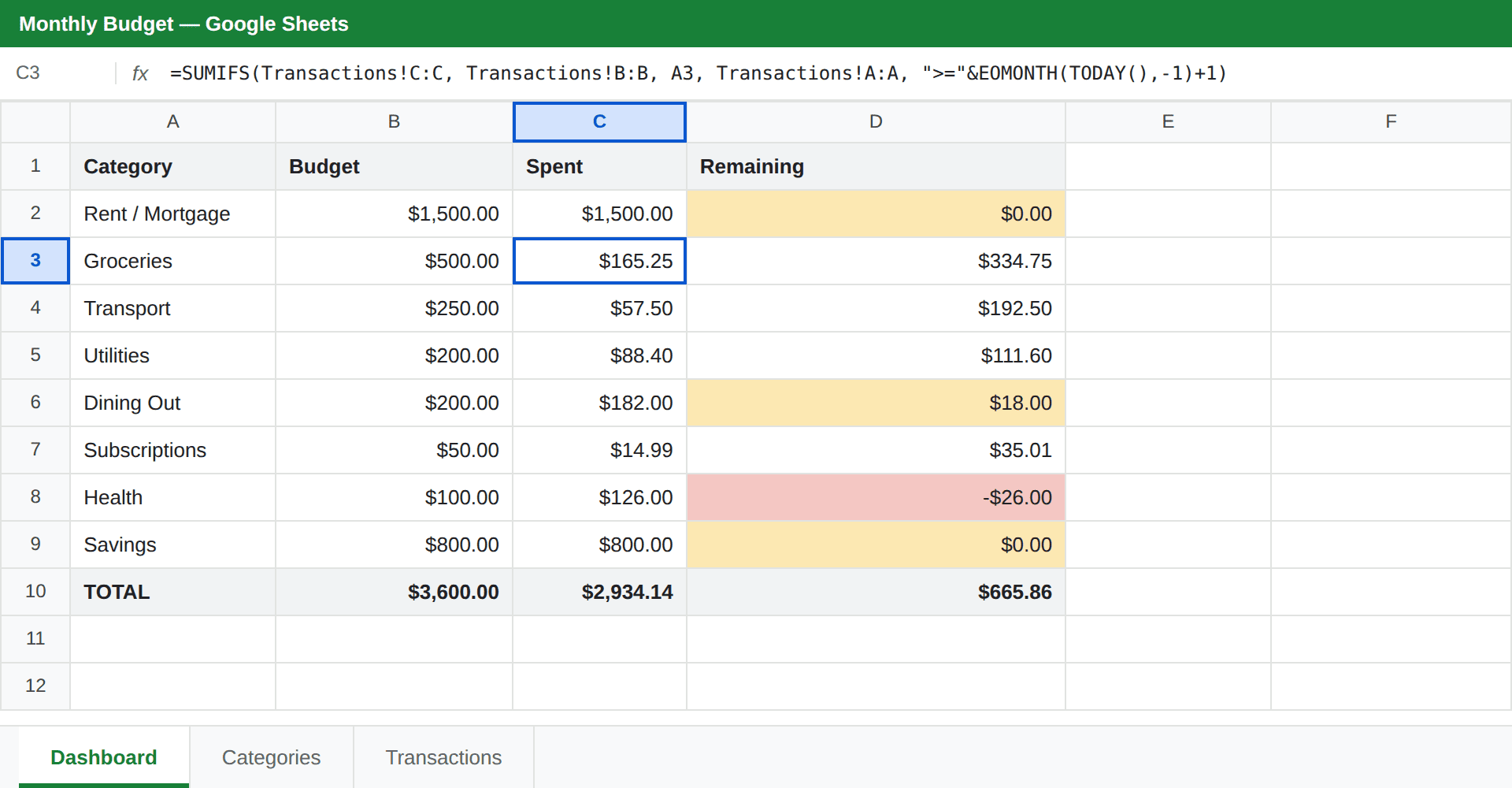
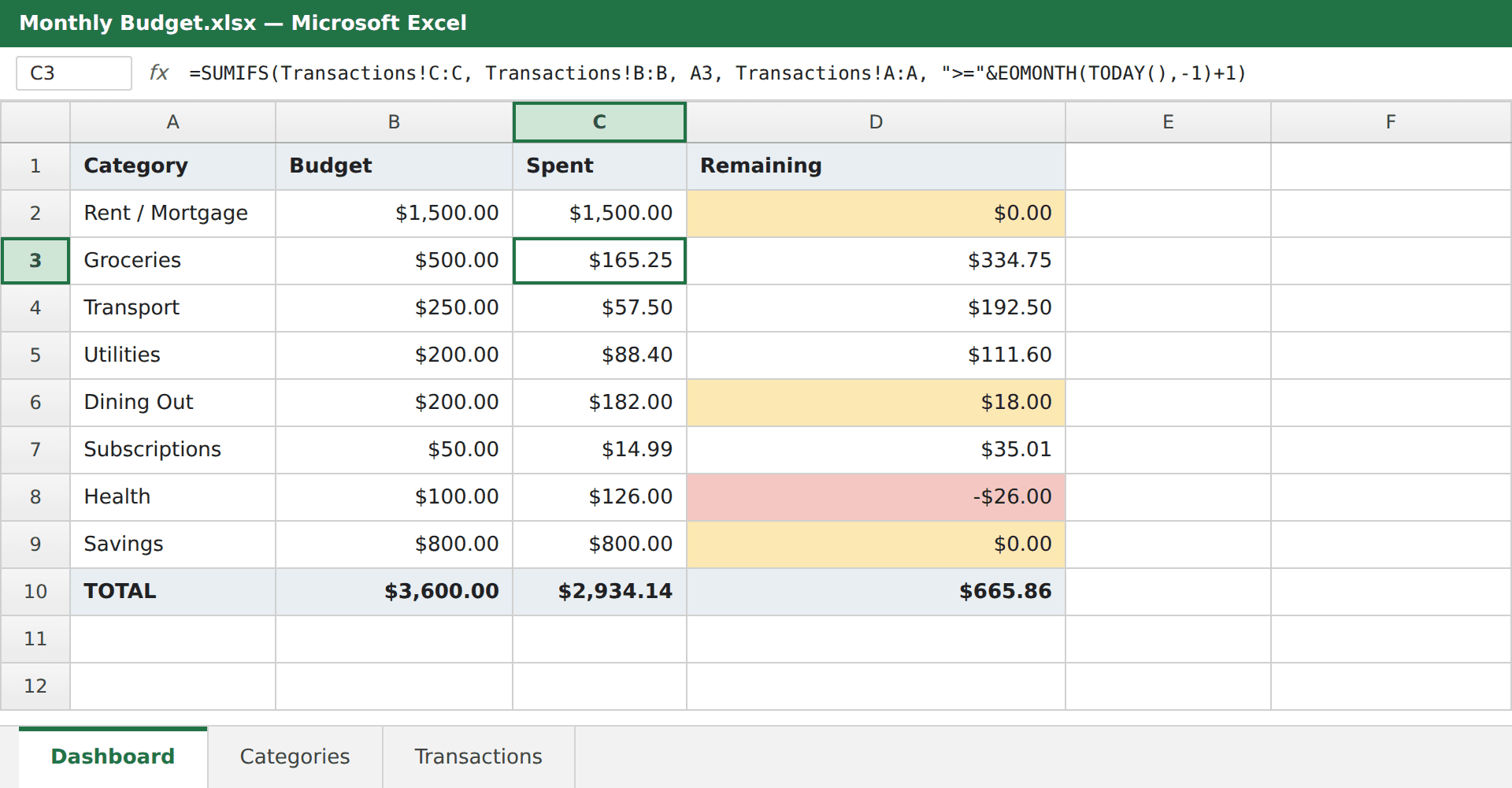
Everything a budget leans on is shared: SUMIFS for category totals, EOMONTH and TODAY for the automatic monthly reset, data validation for category dropdowns, and conditional formatting for overspend alerts. Learning to build a budget in Google Sheets teaches you Excel at the same time.
The divergence is at the edges, and a budget rarely reaches them. Sheets-only: QUERY, ARRAYFORMULA, IMPORTRANGE, GOOGLEFINANCE, SPARKLINE. Excel-only: Power Query, Power Pivot and VBA macros. If you want the file to move freely between both, avoid those and you'll never have a problem — which is exactly how our free budget template is built.
What breaks when you move between them
Both apps read the other's files, so switching is realistic. But there is one trap worth knowing about, because it silently costs people their dropdowns:
Uploading an .xlsx to Google Drive and opening it is not the same as converting it. Drive keeps it as an Excel file and shows it in a compatibility mode, and that mode is where imported features go missing. The most common casualty is data validation that points at another sheet — a category dropdown reading from a Categories tab is exactly that shape, and it frequently doesn't survive.
Two things fix it:
- Convert properly. With the file open, use File → Save as Google Sheets. That creates a real Sheets file. You can tell it worked because the
.XLSXbadge beside the filename disappears. - Use a named range for the dropdown source. A validation rule pointing at a named range survives the trip far more reliably than one pointing at
Categories!A5:A18directly.
Going the other way — Sheets to Excel via File → Download → Microsoft Excel — is cleaner, with one caveat: any Apps Script automation stays behind, and Sheets-only functions arrive as #NAME? errors. Ordinary formulas, formatting and dropdowns come across fine.
Whichever direction you go, spot-check two things before you trust the file: click a cell in your category column to confirm the dropdown still appears, and check that the dashboard totals still match. That takes thirty seconds and catches almost everything.
Which to pick
- Choose Google Sheets if you want it free, want it on your phone, share money with someone, or have no strong existing preference. That is most people.
- Choose Excel if you already pay for Microsoft 365 and know it well, if you clean bank CSVs every month, or if you work offline regularly.
- Don't agonise. The skills transfer, the files convert, and the decision is reversible in about five minutes. A mediocre budget you actually maintain beats a perfect one in the other app.
Once you've picked, the build is the same either way: a transactions log, a category list, and a dashboard that totals itself. Follow the step-by-step Google Sheets walkthrough, or skip ahead and make a copy of the free template — then let automation do the monthly work.
Frequently asked questions
Is Excel or Google Sheets better for budgeting?
For most personal budgets, Google Sheets — it is free, saves automatically, syncs to your phone, and can be shared with a partner in real time. Excel is the better choice if your file will grow past tens of thousands of rows, if you need Power Query to clean bank exports, or if you often work without an internet connection.
Do budget formulas work the same in both?
The ones a budget actually needs are identical. SUMIFS, SUMIF, EOMONTH, TODAY, IF, VLOOKUP and XLOOKUP all behave the same way in Excel and Google Sheets, as do data validation dropdowns and conditional formatting. The differences only appear at the edges: QUERY, ARRAYFORMULA, IMPORTRANGE and GOOGLEFINANCE are Sheets-only, while Power Query, Power Pivot and VBA macros are Excel-only.
Is Google Sheets free?
Yes, with a personal Google account, and there is no row or feature limit that matters for a household budget. Excel needs a Microsoft 365 subscription for the desktop app, though the free web version of Excel handles a simple budget fine.
What breaks when I open an Excel budget in Google Sheets?
Usually very little — but uploading an .xlsx to Drive and opening it does not convert it; it stays an Excel file in compatibility mode, and that is where problems appear. Data validation that points at another sheet is the most common casualty. Use File then Save as Google Sheets to convert properly, and rebuild any dropdown that did not survive.
Can I switch later without rebuilding my budget?
Yes. Both apps import and export the other's format, and a normal budget — a transactions log, a category list and a formula dashboard — moves across intact. Convert the file rather than working in compatibility mode, then spot-check the dropdowns and the dashboard totals before trusting it.